
Suppliers
Payables manages Supplier Maintenance which includes adding new suppliers, maintaining existing suppliers, updating names, addresses, and ACH information.
Supplier Maintenance questions? Click hereChanges to New Supplier Registration
The email below was sent on March 11, 2026 using the subject line "KU Launching New External Supplier Registration Process."
Dear Colleagues,
The University of Kansas will launch a new External Supplier Registration process on March 30, 2026. This update is designed to strengthen security, reduce administrative burden, and improve the accuracy of supplier information across campus. This process applies to all external suppliers, including KU Endowment suppliers (except for Student Awards, which should continue to be submitted through the SSC Finance Request and will transition in a later phase).
Change Beginning March 30
- Departments will use a streamlined Finance Service Portal form (FSP) for both new supplier requests and updates:
- New suppliers will receive an email with a secure registration link. They will submit required documents directly and securely, keeping sensitive information out of email and out of departmental hands.
- For supplier updates the Supplier Management Team will work directly with the supplier to obtain required documents
- The Supplier Management Team will review submissions and communicate approvals or needed corrections. FSP tickets will update automatically as actions are taken.
- Suppliers will receive automated reminders if they have not completed their registration within established timeframes.
Why the Process Is Changing
The new registration system will:
- Utilize a secure tool for collecting W‑9, W‑8BEN, W-8BEN-E and ACH Direct Deposit forms.
- Reduce institutional risk by ensuring departments no longer receive or store documents containing sensitive personal information.
- Improve data accuracy by having suppliers enter their own information directly into FITC.
Streamline supplier setup and maintenance through direct collaboration with the KU Supplier Management Team.
To support a smooth transition, please submit any new supplier requests for which you already have completed documents no later than March 25. Early submission will help ensure a clean cutover to the new registration process on March 30 and will reduce delays for departments and suppliers during the transition period.
For questions, please contact the Supplier Management Team at supplier@ku.edu.
Supplier Registration
Student Supplier Registration Guidance
March 30, 2026
Follow these steps to complete your supplier set-up in our financial system to receive reimbursements from the University.
- You will receive an email from Supplier Maintenance Team (supplier@ku.edu) with a link to the Supplier Registration
Click the hyperlink (highlighted in yellow) to Open the Registration.

- Prepare the Required Information noted on the Supplier Registration page
There are links on this page to blank copies of required documents.

- Once you have the required information/documents, enter your email address and click Send Access Code

- You will receive a system generated email with the secure Access Code.
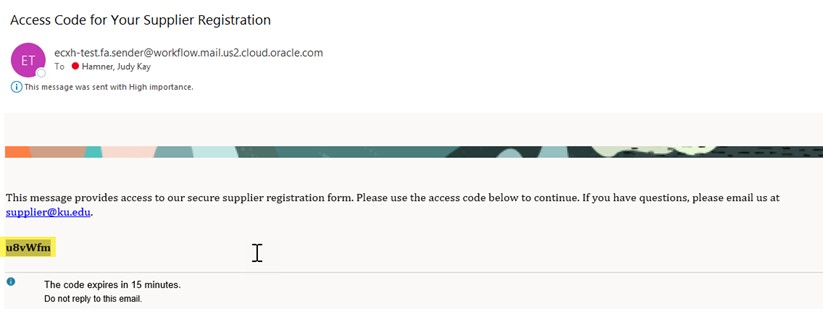
- Enter the access code where indicated and click continue.
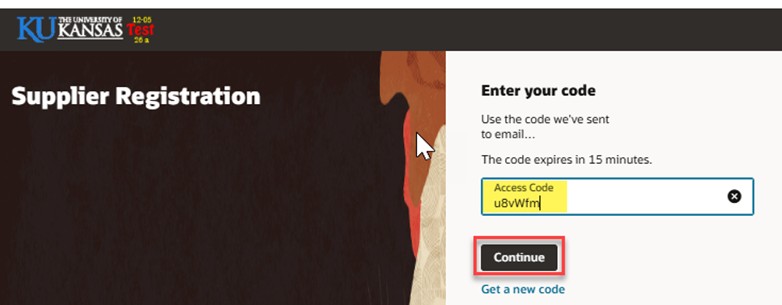
Fill in the required information on the Registration pages
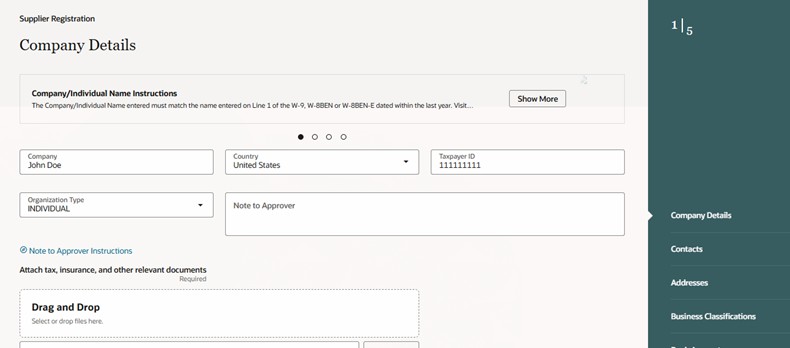
- Supplier Profile
- Enter your name in the Company Field
- Select ‘United States’ in the Country Field if you have a US Social Security Number. Otherwise select the country on your W8-BEN or W8-BEN-E.
- Enter your US Social Security Number or country specific number in the Taxpayer ID field.
- NOTE: The information entered in these three fields must match your W-9, W8-BEN or W8-BEN-E.
- Select ‘INDIVIDUAL’ in the Organization Type field.
- Attach your W-9, W8-BEN or W8-BEN-E in the Drag and Drop section.
- Click Continue at the bottom of the page.
Example Page:
Supplier Contacts
- Enter your First Name, Last Name and email address
- Enter ‘STUDENT’ in the Job Title field
- Enter your mobile phone number in the Mobile field.
- Select ‘Yes’ to the question Is this an administrative contact?
Example Page:

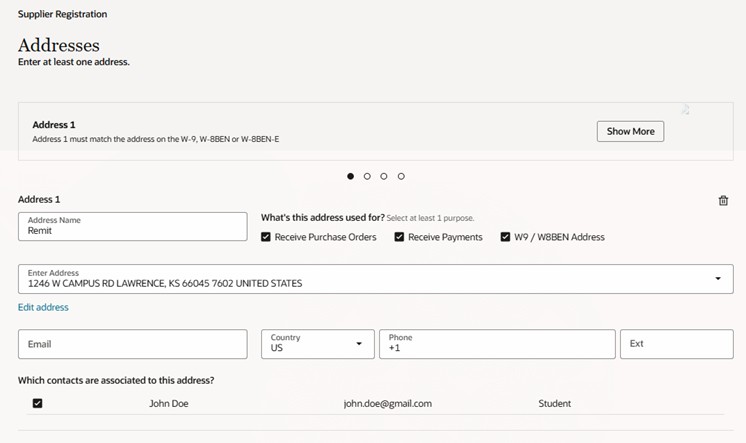
Addresses
- Enter ‘Remit’ in the Address Name field
- Select Receive Purchase Orders, Receive Payments, and W9/W8-BEN Address in the What’s this address used for area.
- Type the address from your W9, W8-BEN or W8-BEN-E in the Enter Address Field.
- If you need to add an apartment Number, click the Edit address hyperlink and add it on Address Line 2.
- Select your contact under Which contacts are associated to this address.
- Click Continue.
Example Page:
- Business Qualifications
Skip
Banking
- This section should only be filled out if you have a bank account with a United States financial institution.
- Enter the Routing Number for your Bank.
- The Bank and Bank Branch will populate automatically
- Enter your full account number
- Select US Dollar in the Currency field.
- Select either Checking or Savings in the Account Type field
- Enter your name in the Account Holder field.
- Attach the KU DA-130 and either a scan of a voided check or an Account Verification Letter in the Drag and Drop section.
Example Page:

Click Submit.
Request to Resubmit
- If the submitted registration is inaccurate or has missing information, you will receive a Request to Resubmit email.
- The email will have a link to your registration.
- You will need to enter your email and access code in the same manner as you did for the original registration.
- Edit the information based on the email request.
Click Submit.
Approval
- When your Registration is approved, you will receive an approval email.